
Radiology Website Guide
The department website guide is a set of standards to maintain consistency and uniformity throughout the website in order to best support clear and concise communication.
TYPOGRAPHY
Header 1 - (H1) Primary Header
Header 2 - (H2) Secondary Header
Header 3 - (H3) Tertiery Header with Built-in Line
Header 4 - (H4) Quadrary Header
Body Text
Lists
Horizontal Rule
Links
Links to words or phrases should be clearly relevant. Here are examples of link types:
Images
Resizing Images
Double click onto your image or open it using Preview. Select Tools, Adjust Size, and Save.
Recommended Image Size
*Respect the copyright, licensing, and attribution requirements of any image you use. Patient-sensitive information should be removed before posting.
**Avoid mugshots, use as much natural light as possible.
Compress Image File Size
To avoid slow load time, compress high resolution images before posting. You can use this link for compressing your images: https://tinyjpg.com/. Drop your .jpg or .png files onto the page and download.
Directory File System
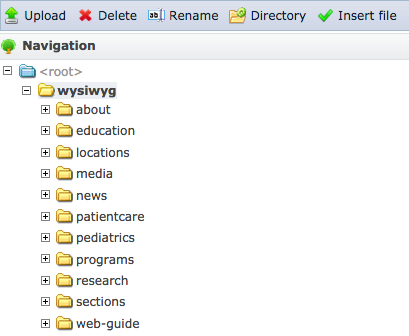
Images should be uploaded to appropriate folders. Please make sure that image uploads go into their proper folders. For example, uploads to research labs should follow this directory structure, wysiwyg>research>labs>lab_name. For clinical sections, follow this directory, wysiwyg>sections>section_name.
Example of Image Right Justified
To aligned the image to the right of the text, first place the cursor at the beginning of the paragragh. Then upload the image. Select the image by clicking on it once. Then press the Right Align paragraph alignment icon. To give the image a little spacing around it so it does not butt up against the text, add HSpace 15 and VSpace 5 to its image property.
Content Layout
- Descriptive lab name
- Overview paragraph
- Research image
- People: name, title, email, and headshot (in accordion box)
- Research directions (in accordion boxes)
- PI at the bottome (use related people field.
- Right side callout box: Contact info, lab name, address, phone and email.
Related People Field
Type in Faculty name and it will pull up their headshot, name, and title linking to their bio page. Note: It will only show up at the bottom of page.